- Login to your account at www.appruv.com
- To change your currency setting in Appruv, you must be an administrator for your company
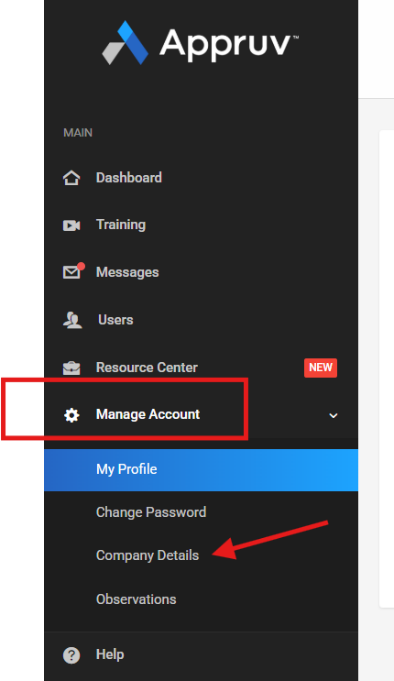
- Click Manage Account on the left-side menu
- Under Manage Account, click Company Details
- From Company Details, click the Settings tab

- Click the drop-down arrow next to Currency to select the preferred currency
- Click Save
- Click Dashboard on the left-side menu
- Choose the Client you are qualifying for
- Go to the Complete Payment Page
- When this page is refreshed, you will see the updated currency
NOTE:
Currently only Visa and Mastercard are accepted for foreign currency transactions. If you want to make a payment with a different card type (American Express, Discovery, etc.) the preferred currency must be set to USD.
Was this article helpful?
That’s Great!
Thank you for your feedback
Sorry! We couldn't be helpful
Thank you for your feedback
Feedback sent
We appreciate your effort and will try to fix the article